Exhibitions
Technology for Artists
Author Bio
Becs Epstein is a transdisciplinary artist whose work explores human-plant relationships through ceramics and performance. Becs holds a BFA from Carnegie Mellon University and an MFA from SAIC. She founded Technology for Artists, a consulting company focused on providing personalized IT support to artists. Her work has been exhibited internationally and across the United States. Becs has undertaken residencies from South Korea to New York City to Washington State in rural and city environments. She works with artists on managing their digital world locally in Chicago and nationally over Zoom.


An important application is due tonight. You just know that you have the perfect photograph of the print you want to submit…but you can not find it! And is the file you finally found the full-resolution original, the version cropped for your website, or the small copy you emailed to a collector last year?
For the past three years I’ve helped artists use technology to enhance, support, and protect their work with my business, Technology For Artists (https://www.technologyforartists.com/), alongside working on my own art (https://www.becsepstein.com/). I’ve figured out a few essential technology skills for all artists.
In February of this year I spent three weeks at the artists-in-residence program at Anderson Ranch, Colorado. I love talking about the art I made there, but one of the most exciting elements was getting to talk with two printmakers about their specific technology needs. Highly specific technology issues are my specialty! These technology challenges included keeping track of images, in all their variations, along with cyber security, website maintenance, Adobe Photoshop skills, Cloudsharing, e-commerce, device updates, mailing list management, AI training and security, and more.
Here I want to focus on just two of the most common problems I heard about and describe how you can best tackle them! We are going to work on how to organize your files and how to have a healthy back-up system to make working easier and protect your archive. So why am I talking to you guys today?
You know better than me that printmakers are often analytical and detail-oriented. You have to keep track of editions and documentation. A tutorial on file management is a natural extension of those needs. Do you have a trove of process shots, documentation, and grant/application drafts piling up without a system? Does it take you way too long to find the perfect image for an application? IF you answered yes to any of that, then this tutorial is for you.
Basic File Organization
So let’s talk about why having an organized archive matters. If you organize your files, you can reduce your time spent looking for files. An organized archive saves you time searching for files. A reliable backup system protects that archive against loss from corrupted files and failing hard drives.
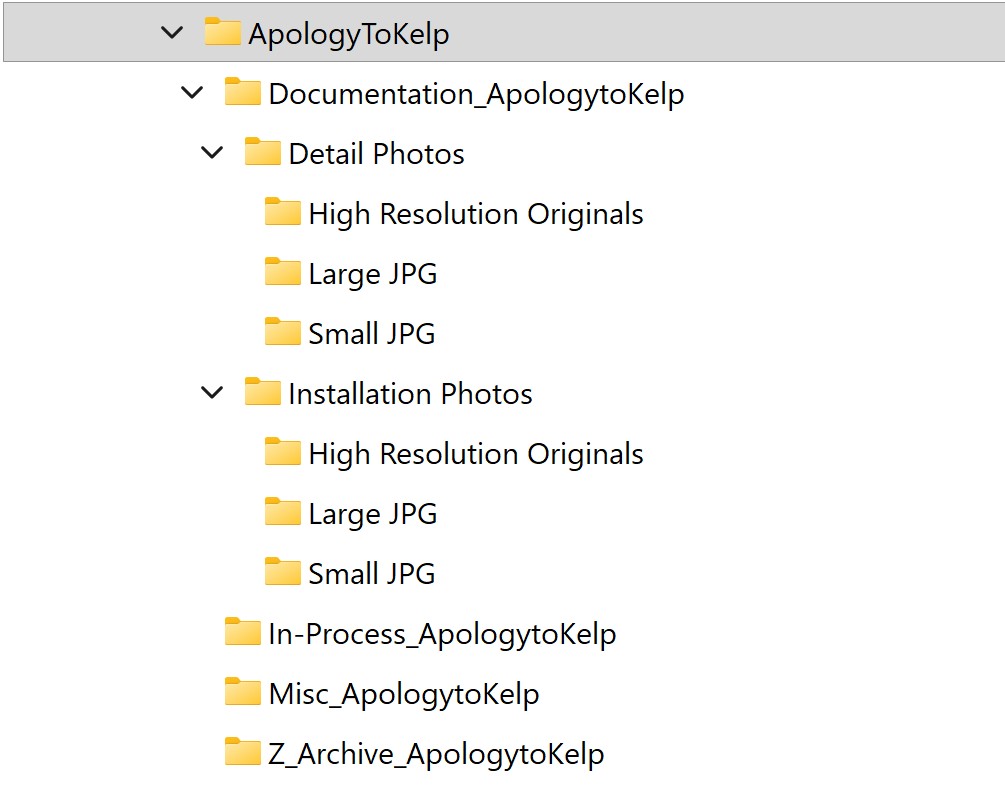
Let’s move on to what reorganizing your digital archive can look like. At Technology for Artists, I utilize three core principles: consistency, chronology and searchability. Look at the image to see an example I set-up for a client. The exact organization will be unique for each person depending on your practice on your computer. The starting structure I always recommend is to start with a bigger folder such as “Artwork” -> “Year” -> “Project/Series” -> and then tree into folders “Documentation”, “In-Process”, “Misc”. Let’s then take for example, “Documentation” would then hold “Installation Photos” and “Detail Photos”. Each of those folders would then contain a version of “High Resolution Originals”, “ Large JPG”, and “Small JPG”. This is following a logical hierarchy for studio work. I want you to be able to find an image you need almost immediately.
Now, let’s think through how to structure a main “Applications” folder. It would go “Applications” -> “Year” -> “Organization”. An additional element you can add if you often use the search to find folders is to add “_ProjectName” to the end of every folder name. You are building a structure that is flexible enough to scale over years of being a practicing artist.
Now that we have a starting point for your folder organization, we need to make a plan for naming your files. This is again personal. You need to find a naming system that works for your brain. The biggest common mistakes are vague names (ImageDownload), inconsistent formats (Image1 vs ImageH248Pink), and relying on repeating version indicators ( “final_final_v2”). A successful example is “YYYY-MM-DD_Project_Title_0#.jpg”. This descriptive and uniform naming will allow you to find images at a glance.
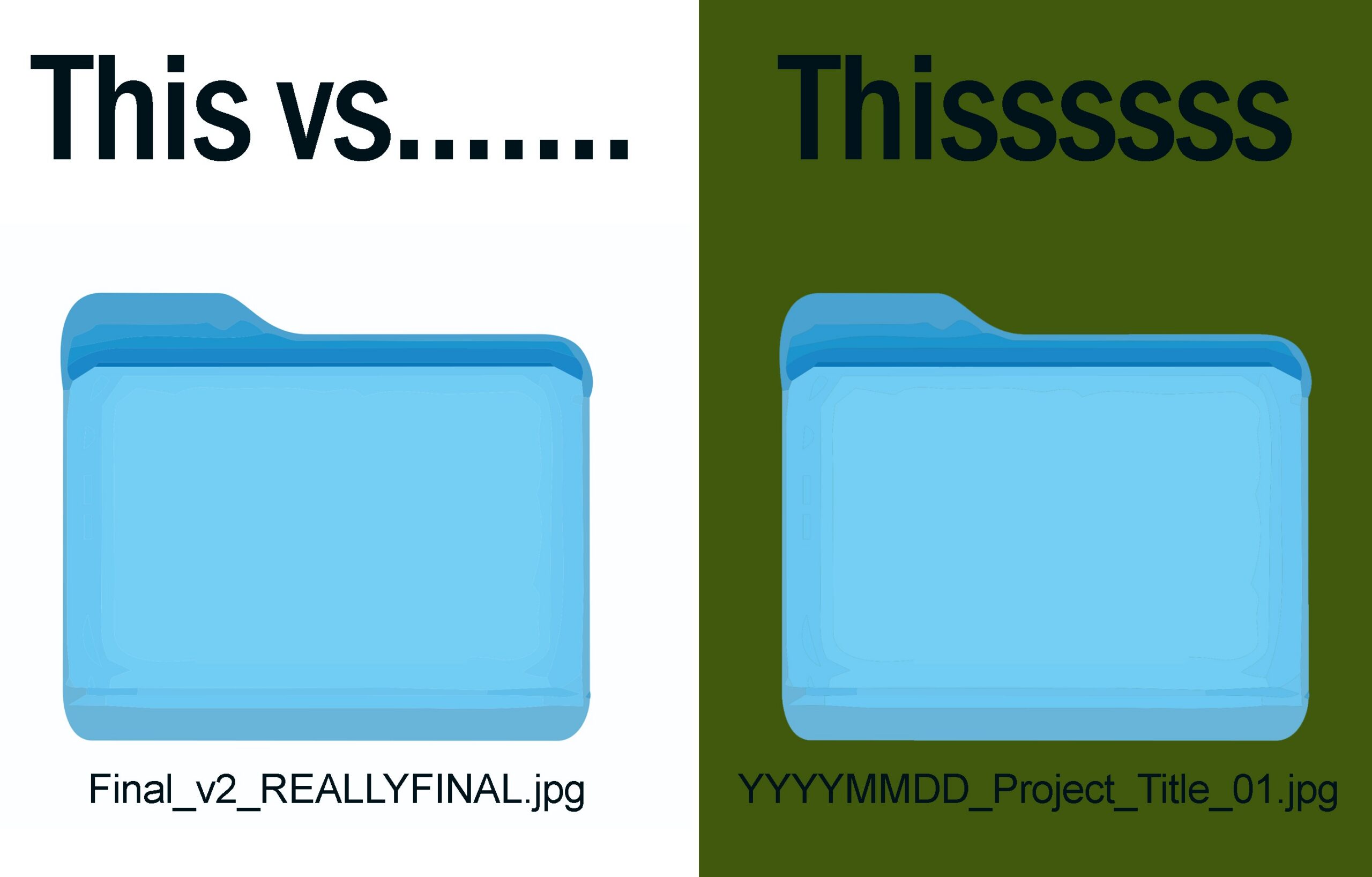
Here are some other pitfalls of naming to avoid inconsistent date formats (mixing MM-DD-YYYY, DD/MM/YY, and written dates), generic descriptors like “document” and “file”, special characters “&” which reduce searchability, and lack of applicable context such as project names. In a world of constant choice, give your brain a break on busy days by having an easily comprehensible file naming practice. It takes substantially less energy to find a file named “2024-02–25_Elephant_V1” vs “Ele_022524_final_finaltrue”.
So now you know what to do, but how do you get yourself to do an admittedly boring but essential task. Let’s make a short, actionable checklist you can implement immediately. Start small. Pick one folder to reorganize this week. You might get in the flow and do a whole batch but make your goal just one. Maybe get together with a colleague and co-work to both organize your files. That one folder will help you see that digital reorganizing is not as bad as you thought. It might even be satisfying! Next week pick two folders, and keep going until you don’t have that backlog anymore.
The 3-2-1 Backup Method, Explained Simply
Now that you’ve started getting a handle on how to organize your files, let’s work on protecting all of that information. At Technology for Artists, I teach the 3-2-1 backup method: 3 copies of your files, on 2 different types of media, with 1 stored offsite. My goal is simple. I never want an artist to lose their digital archive. In an age of websites and social media, there’s an unfortunate reality: If the pictures don’t exist, it never happened. Your archive is essential for your current career, and it’s your legacy too.
The most complete version of this rule that I recommend is your active computer, an external-drive backup at home, and a cloud backup, with one offsite. For extra protection, I also recommend a second external drive stored at another location which you can swap-out with your on-site external drive from time-to-time. Together, these protect you against the most common points of failure: drive failure, theft, fire, and cloud account problems. That may sound like a lot, but there are practical, affordable ways to do it.
- Your physical backup at home
For this one, I recommend a large-capacity external hard drive paired with the backup software already built into your computer. On a Mac, that’s Time Machine. It takes a full image of your computer over time, so you can go back to past versions if a file becomes corrupted or something goes wrong. If you’re on Windows, there’s a built-in program for this too, File History.
- Your cloud backup
Here again, you want something robust that captures your computer at different points in time, so if anything goes wrong, you can get your files back as they were yesterday. This is different from something like Dropbox. Dropbox is synced to your computer, which means if you change an image, it changes there too, and there’s often no easy way to revert. If a file gets corrupted or you accidentally save over it, a true backup lets you go back in time and save yourself the horror of losing that image.
I often recommend Backblaze. It’s affordable, reliable, and does exactly this.
- Your backup at an alternate location
This third backup is going above and beyond, but it can be essential. It’s for the worst-case scenario: a fire or a break-in destroys your computer and your in-person backup. Maybe you also don’t want to rely on the cloud, or your Wi-Fi is down, or something else gets in the way. Think of this as an extra layer of security focused on protecting your archive, not the day-to-day changes you make on your computer. You can use Time Machine or any full backup tool to make a copy of your computer on a second hard drive, and update it every three months, every six months, or even once a year. Even a yearly update protects everything you’ve done in the past. Then store that drive somewhere else: a storage unit, a friend’s house in another state, or your office. One backup at home and one at the office gives you a truly robust strategy. Three layers of security means you and your artwork are protected.
No matter what backup strategy you choose, after you’ve implemented it, you must must must test it. Make sure you can recover files because computer history is filled with people who thought they’d created a backup plan but it didn’t work when they really needed it.
Conclusion
If you made it this far, congrats! It can be overwhelming to have to leave the studio and deal with these mundane tasks, but handling your tech chaos now means less headaches in the future. Together we have made a plan to reorganize your files and gone over how to protect that data from human and mechanical error. Hopefully with these tips, the next time an application is “due tonight” you’ll find that image right away! If you have any success or failure technology stories I’m always interested in hearing about your progress and learning together. Please feel free to reach out to me at becs@technologyforartists.com. Now let’s both get back to studio!
Graphic Impressions is published by SGC International. SGC International is an educational non-profit organization committed to informing our membership about issues and processes concerning original prints, drawings, book arts, and handmade paper.
Graphic Impressions Updates
Submissions
We encourage your submissions to Graphic Impressions. Submission types include:
- Feature articles
- Reviews
- Interviews
- Studio visits
- Exhibitions
- Demonstrations or process-based content